


Managing access to the Production Environment in Business Central Online
Securing access to your ERP’s Production Environment is one of the most crucial steps your team can take at the beginning of your implementation to set the project up for success. Since this is the environment you will eventually go live in, it is critical that no users transact in that environment or treat it like a sandbox, as this will be difficult to reverse. Luckily, Microsoft provides a handful of ways to prevent this scenario. This guide covers three methods for restricting user access to production environments: the Security Groups method, the License Configuration method, and the User Status method.
What options do I have for securing my Business Central Production Environment?
The Security Groups method leverages Microsoft Entra ID security groups assigned at the environment level to control which users can sign in to specific Business Central environments. This approach provides centralized access management through the Microsoft 365 admin center and Business Central admin center.
The License Configuration method involves customizing permission set assignments for license types, preventing new users from accessing the system or companies within the system, upon first login.
The User Status method provides direct control by disabling individual user accounts from the Users page in Business Central, immediately revoking access in a single click.
For all of these scenarios, we’ll assume that the user accounts have already been created and assigned a Business Central license. Each method shines in different situations, so let’s dive right and start setting these up.
How can I use Security Groups for managing Business Central access?
The Security Groups method provides environment-level access control by assigning Microsoft Entra ID security groups to Business Central environments. When a security group is assigned to an environment, only direct and indirect members of that group can sign in. Indirect members are users in a group that is itself a member of the assigned group. This method offers several advantages including centralized management through the Microsoft 365 admin center and synchronization with Microsoft Entra ID for consistent security policies.
Prerequisites for implementing this method include administrative access to the Microsoft 365 admin center with permissions to create and manage security groups as well as access to the Business Central admin center as an internal administrator. The security groups must be created in Microsoft Entra ID before they can be assigned to environments. It is important to note that restrictions imposed by security groups do not apply to internal administrators, who can freely sign in to all environments regardless of assigned groups.
How do I create Microsoft Entra ID Security Groups?
To create security groups in the Microsoft 365 admin center, navigate to Teams & groups and select Active teams & groups. On the Active teams & groups page, select the Security Groups tab. Click the action button labeled + Add a security group to begin creating a new group. On the Set up the basics page, enter a descriptive Name for the security group. Typically, you would note that the security group relates to production environment access by including either “Prod” or “Production” in the security group name. Click Next and finish creating the security group; you can now assign the security group to users.
How do I assign a Microsoft Entra ID Security Group to a Business Central Environment?
To restrict environment access using security groups, you must assign a specific security group to the production environment through the Business Central admin center. This is the critical step that enforces environment-level access control.
Navigate to the Environments page in the Business Central admin center and select the environment to which you want to assign the security group. On the Environment Details page, the currently assigned security group is shown under the Security Group section. If no group is assigned, the field displays Not Set, meaning any licensed user with permissions can sign in to the environment.
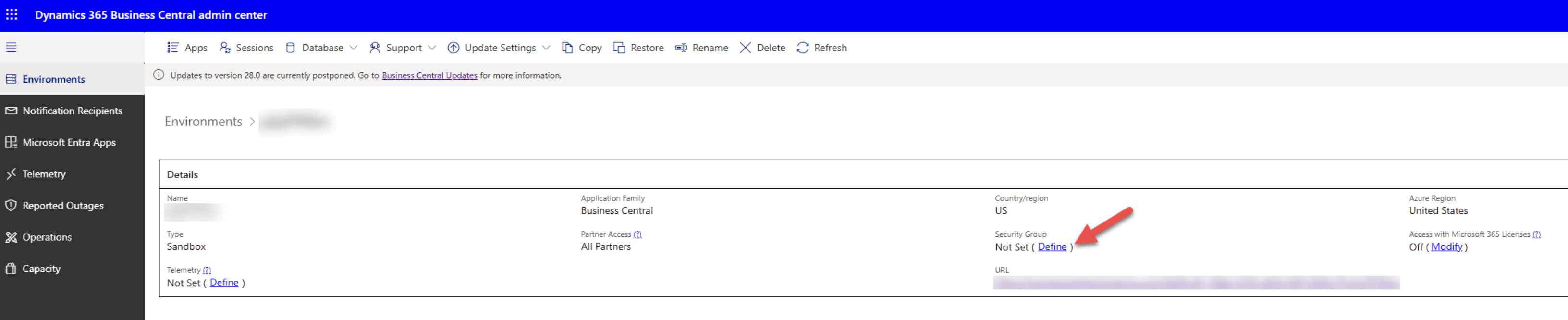
To assign a new security group to an environment, select the Define button. To change or remove an existing security group assignment, select the Modify button. The Edit Security Group pane displays the current security group assignment if one exists, followed by a searchable list of all available security groups in Microsoft Entra ID.
To assign or change a group, search for and select the desired security group from the list, then confirm your selection. To remove a group assignment entirely and allow all licensed users to sign in again, select the removal option under Current Security Group.
Once a security group is assigned to the environment, only direct and indirect members of that group can sign in. Users not in the assigned security group will be unable to access the production environment, even if they have valid Business Central licenses and appropriate permissions configured.
How can License Type Configuration control Business Central user permissions?
The second method provides access control by customizing which permission sets are automatically assigned to new users based on their license type within Business Central. When all permission sets are removed from a license configuration, new users attempting their first login cannot access the system because they lack the necessary permissions to view or interact with Business Central.
How can I manage user Permissions by License Type in Business Central?
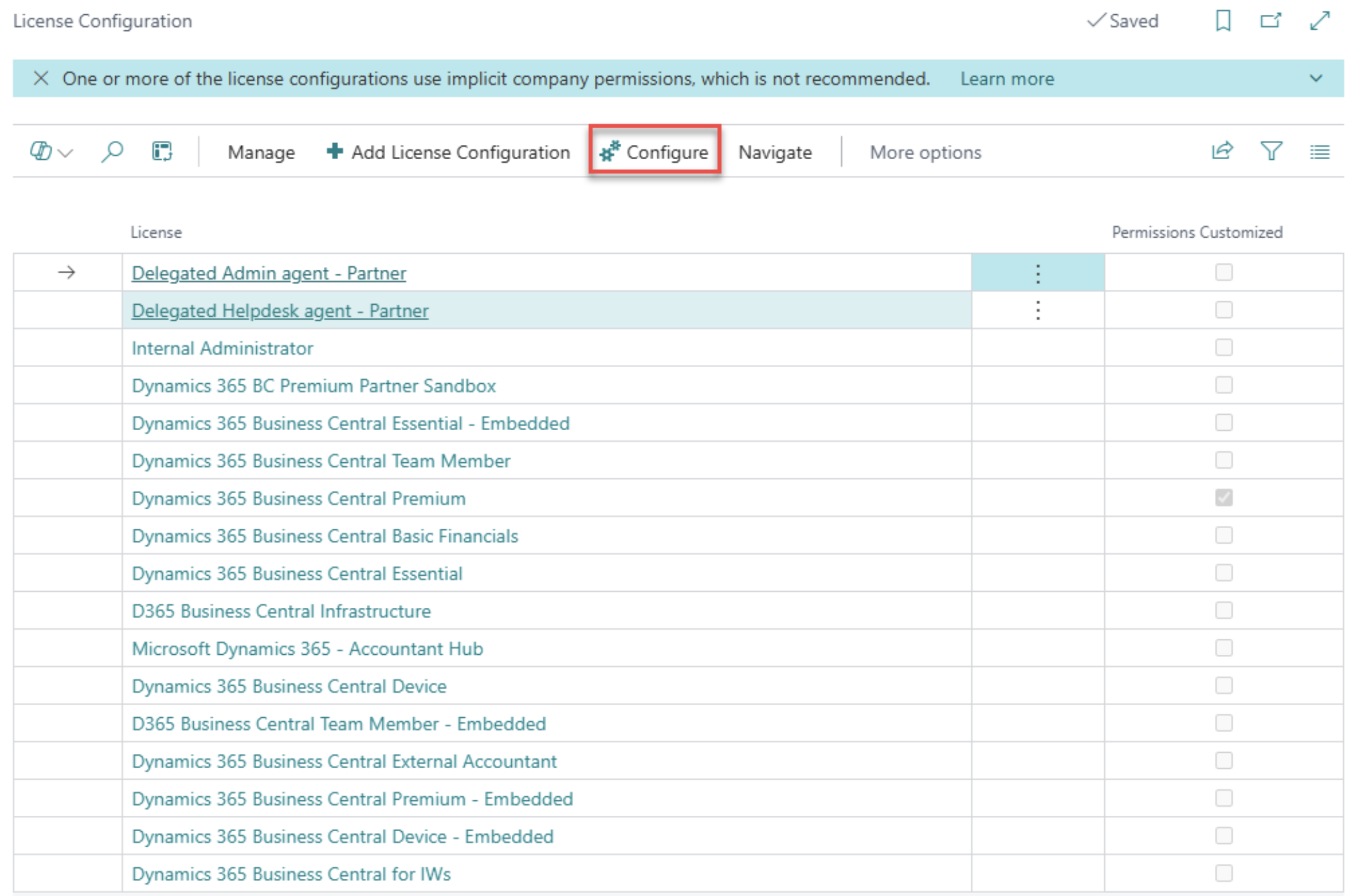
To implement this method, open Business Central and search for License Configuration. The License Configuration page lists all available license types. For each License Type you wish to restrict permissions for, click on the line and select the Configure button.
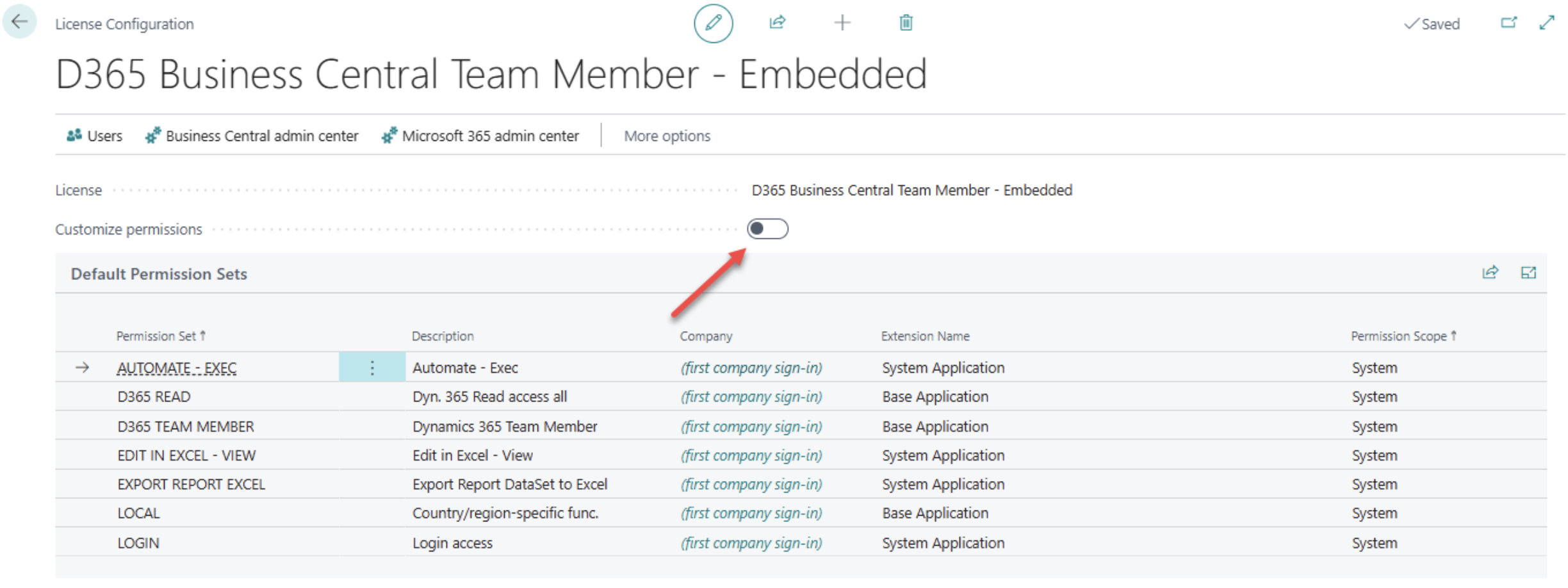
Toggle the Customize permissions Boolean to enable editing of the permission set assignments. By default, many licenses include permission sets such as D365 BUS PREMIUM, D365 BUS FULL ACCESS, which provide a high level of access to the system. Remove all permission sets from the license configuration by selecting all the lines and deleting them.
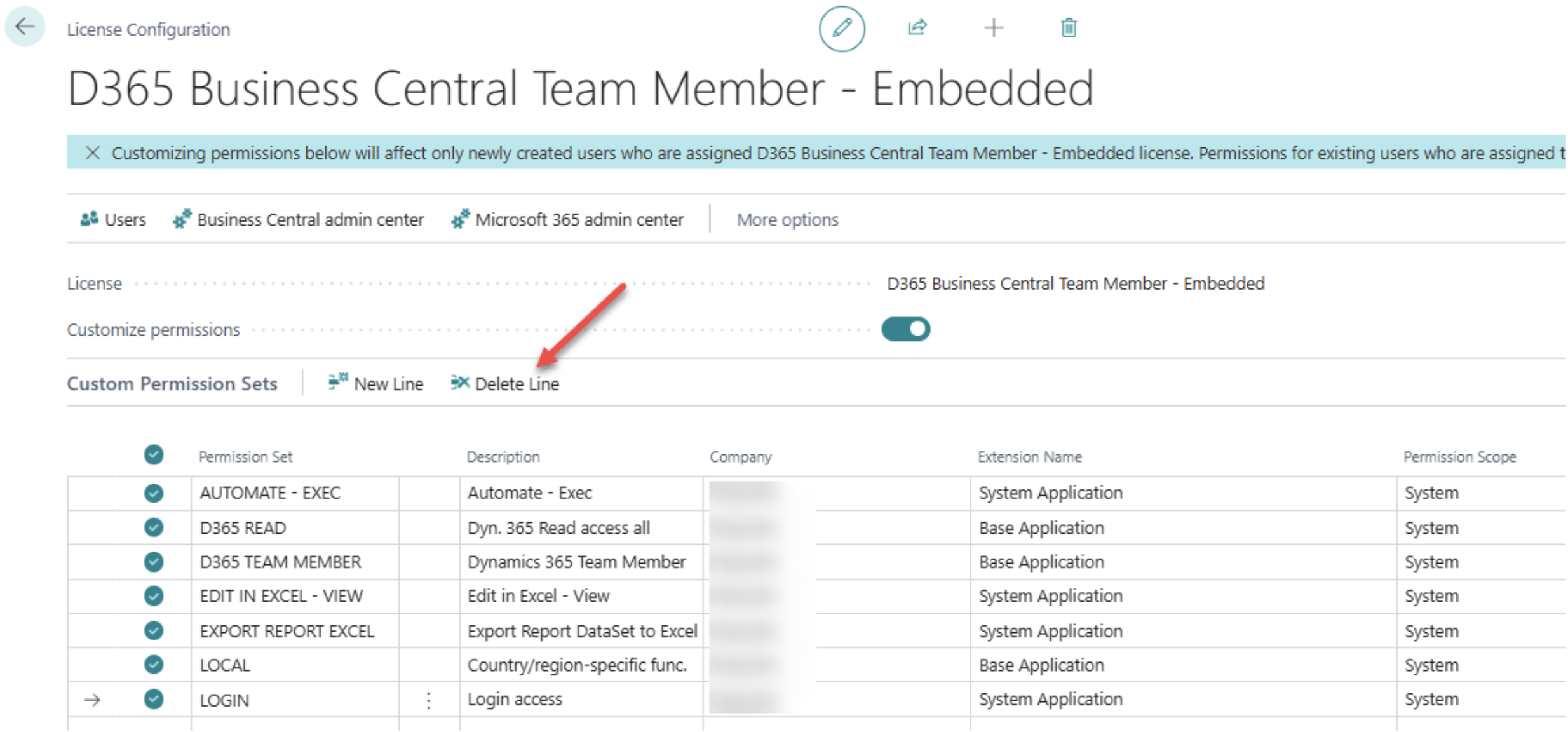
A warning message will appear stating “Customizing permissions will affect only newly created users who are assigned to the license. Permissions for existing users who are assigned the license will not be affected.” This is the intended behavior - existing users retain their current permissions while new users receive no automatic permissions. Save the configuration by closing the page. The Permissions Customized flag will now show as checked on the License Configuration List page
When new users with the affected license attempt to log in to the production environment for the first time, they will be unable to gain access. If a user needs access at a later point, administrators must manually assign appropriate permissions on individual user cards, or via security groups. Depending on how many license types your organization employs, you may need to repeat these steps additional times.
How can you control access by User Status Business Central?
The User Status method provides immediate access control by directly disabling individual user accounts from the Users page in Business Central. This method is particularly effective for temporarily or permanently revoking access for existing users without removing their Microsoft 365 licenses or security group assignments. When a user account is set to Disabled status, the user cannot sign in to Business Central even if they have valid credentials, appropriate licenses, and security group memberships. This method is commonly used for employee offboarding, temporary suspensions during security investigations, or seasonal access restrictions.
How do I disable users in Business Central?
To implement this method, open Business Central and search for Users. The Users page displays a list of all user accounts in the environment, showing their authentication email, full name, and current state. Locate the user account that requires access restriction and click on the user name to open the User Card. On the User Card, locate the Status field which controls whether the user account is Active or Inactive. Switch the status from Active to Inactive, and the change will take effect immediately. To restore access later, return to the User Card and change the Status field back to Active.
Unlike the License Configuration method which only affects new users, the User Status method provides instant access control for existing users who have already logged in previously. This method works independently of security groups and license configurations, providing an additional layer of security control directly within Business Central.
You’re now an expert in protecting your Business Central Production Environment! You may find a particular method stands out as being the obvious choice for your organization, or you may need to mull over the choices. It is also possible to use a combination of several different methods if it makes sense for your organization. You can now be confident that your production environment is safe and secure; good luck with your implementation!
For recommendations on user permission best practices, review our earlier blogpost on this topic.
If you need help reach out to us, we are here to help with all your Business Central questions.
References
Manage Access to Environment - Business Central | Microsoft Learn
Create Users According to Licenses - Business Central | Microsoft Learn
Reach out to learn more about what we can do.
contact us
